
GO-GO NET HELP
Let us get you connected.
Short answers. Clear steps. Diagrams for your devices.
I have no internet. Where do I start?
- Check whether all devices are affected. Briefly turn mobile data off on your phone to test your home Wi-Fi specifically.
- Check power to the ONU or PoE injector and to the router. If nothing lights up, see the answer below.
- If you see a service suspension page, check the payment. If you have already paid, do not pay again before we check the transfer.
Tell us which lights are on or blinking and when the problem started. You can send a photo in chat.
No lights on the ONU or router.
- Check whether mains power is available and the power strip is switched on.
- Visually check that the original adapter is connected to the outlet and the device's round POWER/DC socket. The ONU and router have separate power supplies.
- If there is a clearly labelled Power / On-Off button, check its position. Do not press unfamiliar buttons.
Some routers have an LED night mode. No lights alone do not prove a fault. If nothing changes, send a photo of the device and its adapter.
Do not swap adapters or open equipment or sockets. Stop checking and get help if there is a burning smell, sparking, moisture or a damaged cable.
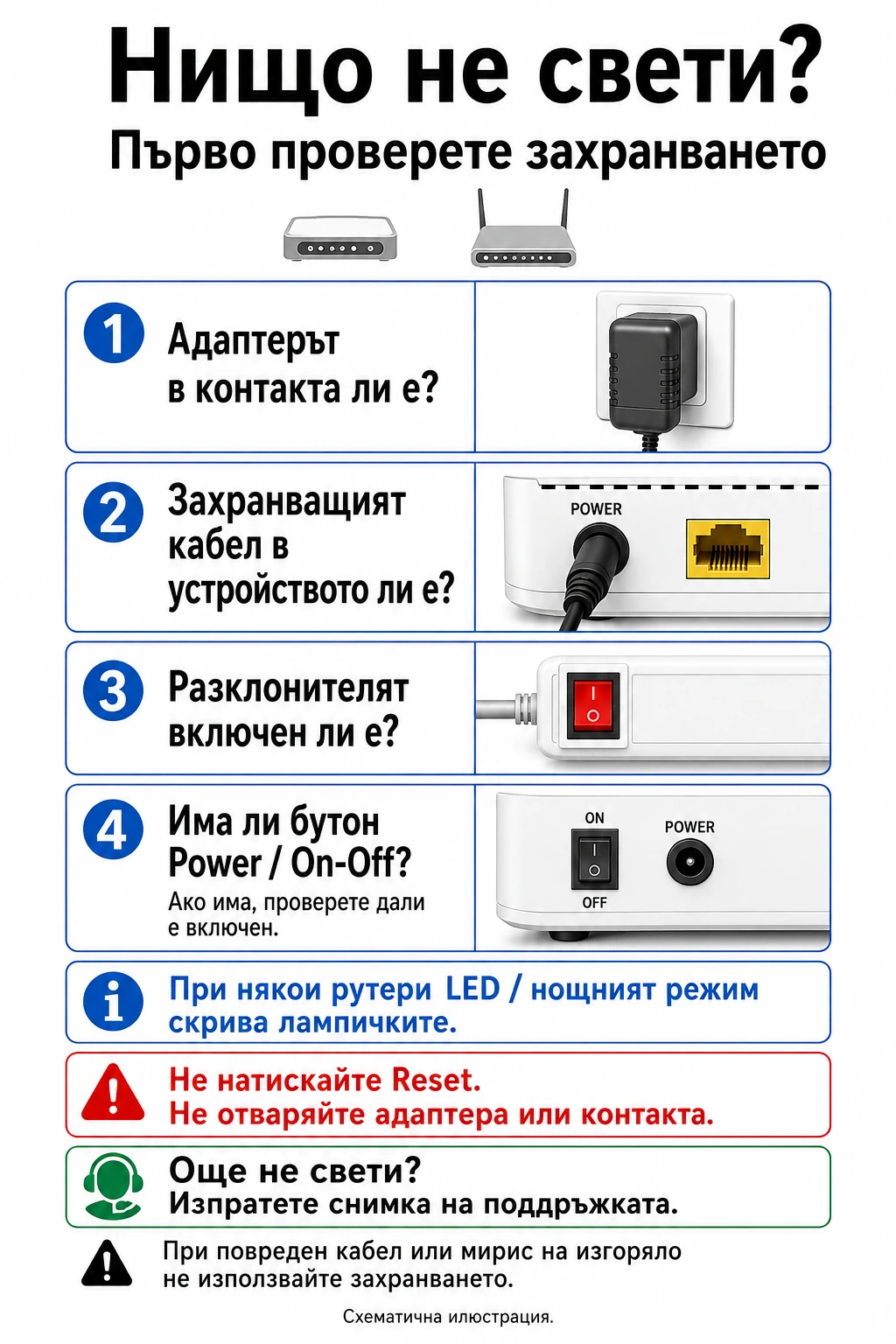 No lights: power checks
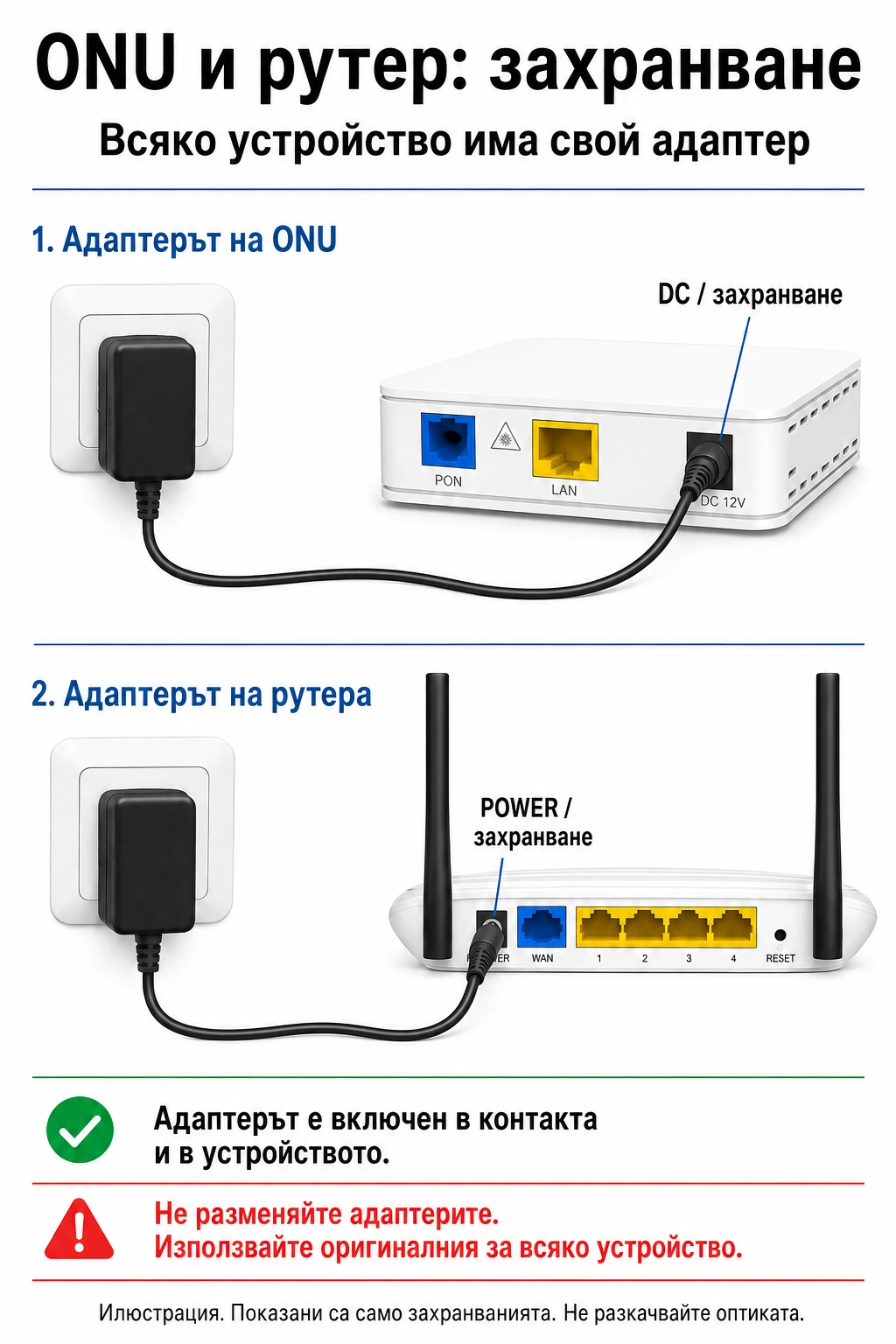 Separate ONU and router power supplies
Schematic illustrations with Bulgarian labels; the English instructions above explain the connections. Follow the labels on your own device, not the cable colours or port positions in the drawing.
Fiber: which cable goes where?
- The thin fiber cable enters the blue PON port on the VSOL V2801S. Leave this connection as installed by the technician.
- The Ethernet cable connects ONU LAN to router WAN / Internet.
- The ONU and router each use their own power adapter.
Follow port labels, not just their colours. A wired computer or TV connects to a router LAN port, not in place of the incoming WAN cable.
Do not disconnect or sharply bend the fiber. Do not look into the PON port or optical connector. Do not press Reset.
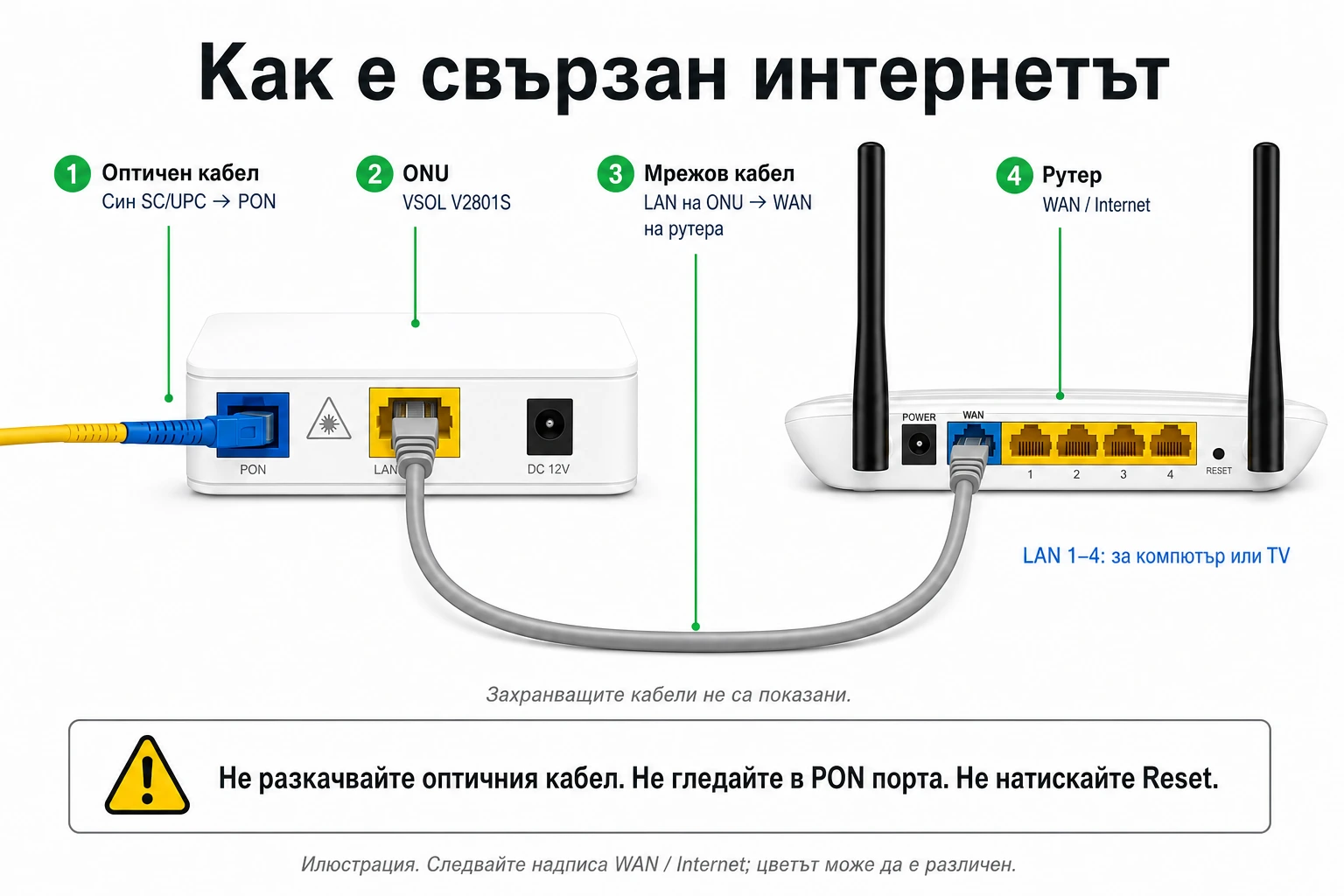 Fiber → ONU → router
Diagrams for your Archer model
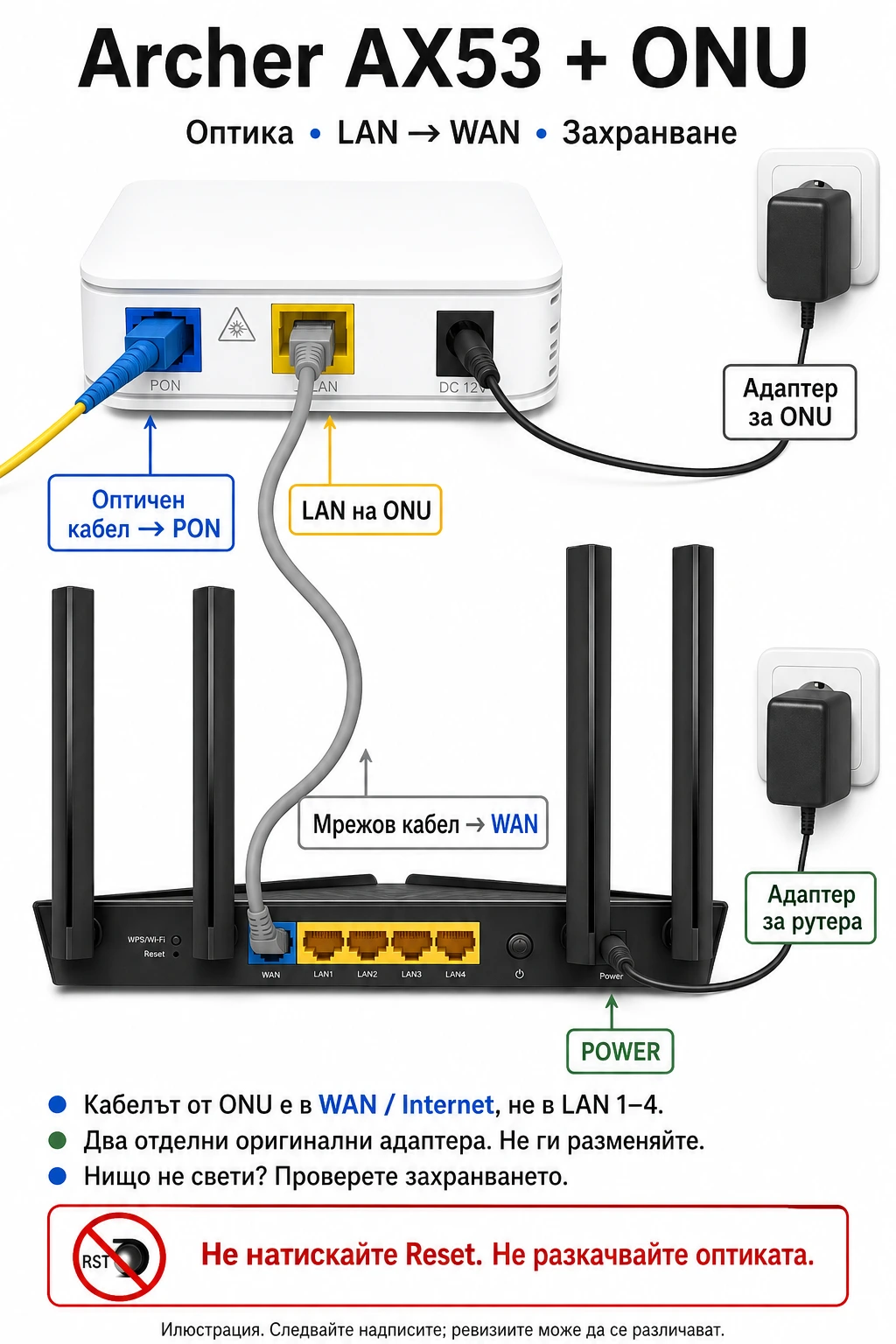 ARCHER AX53 + VSOL V2801S
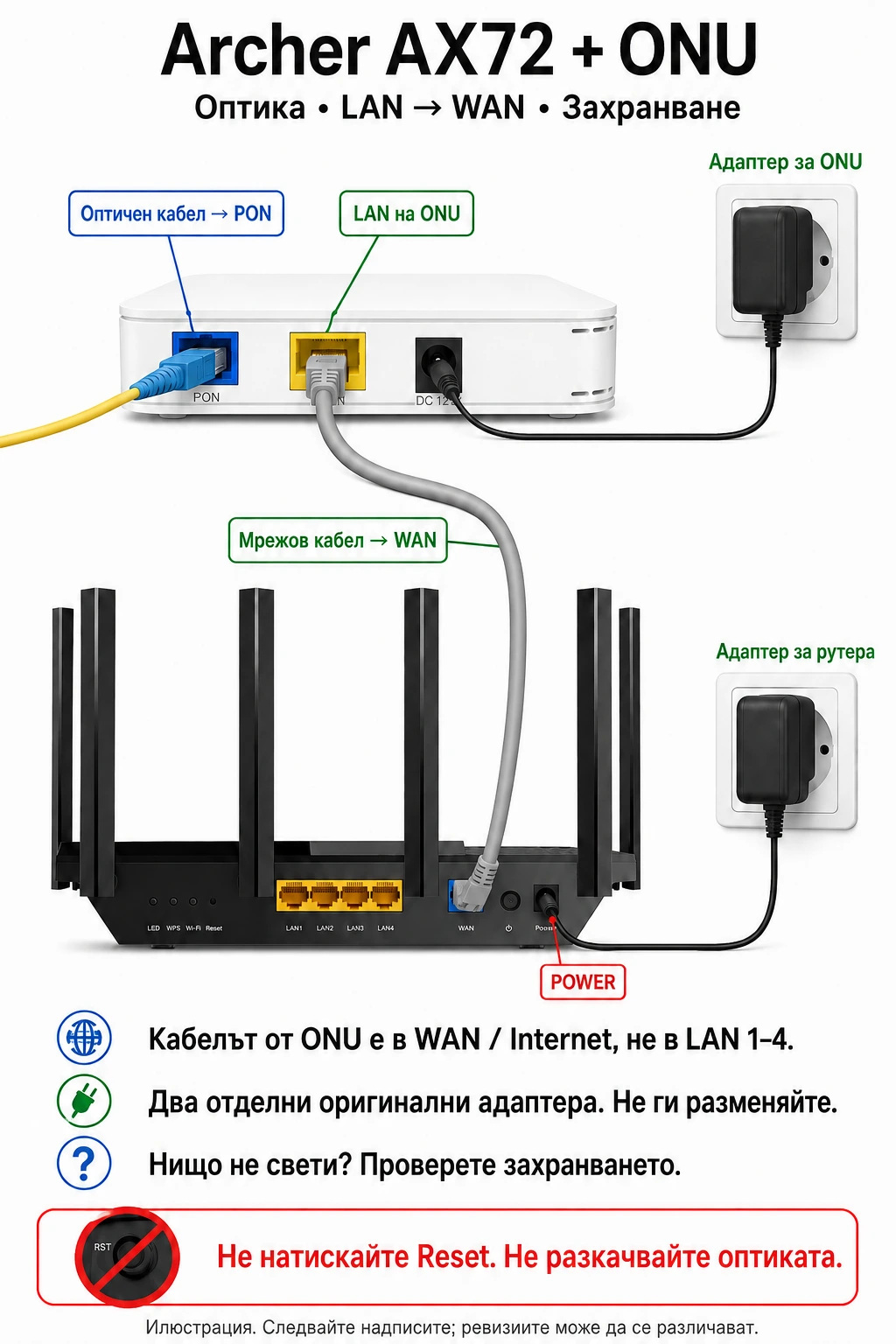 ARCHER AX72 + VSOL V2801S
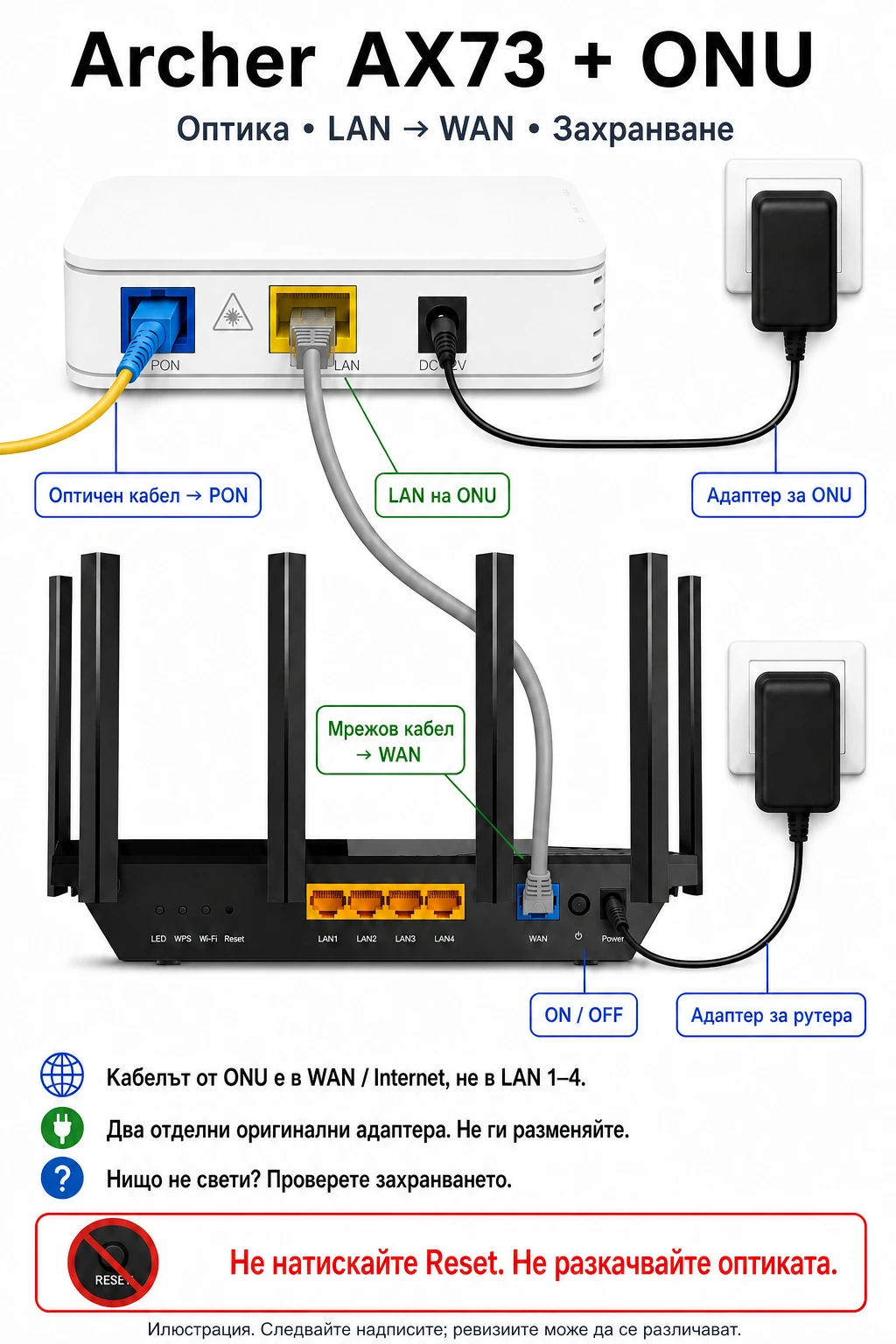 ARCHER AX73 + VSOL V2801S
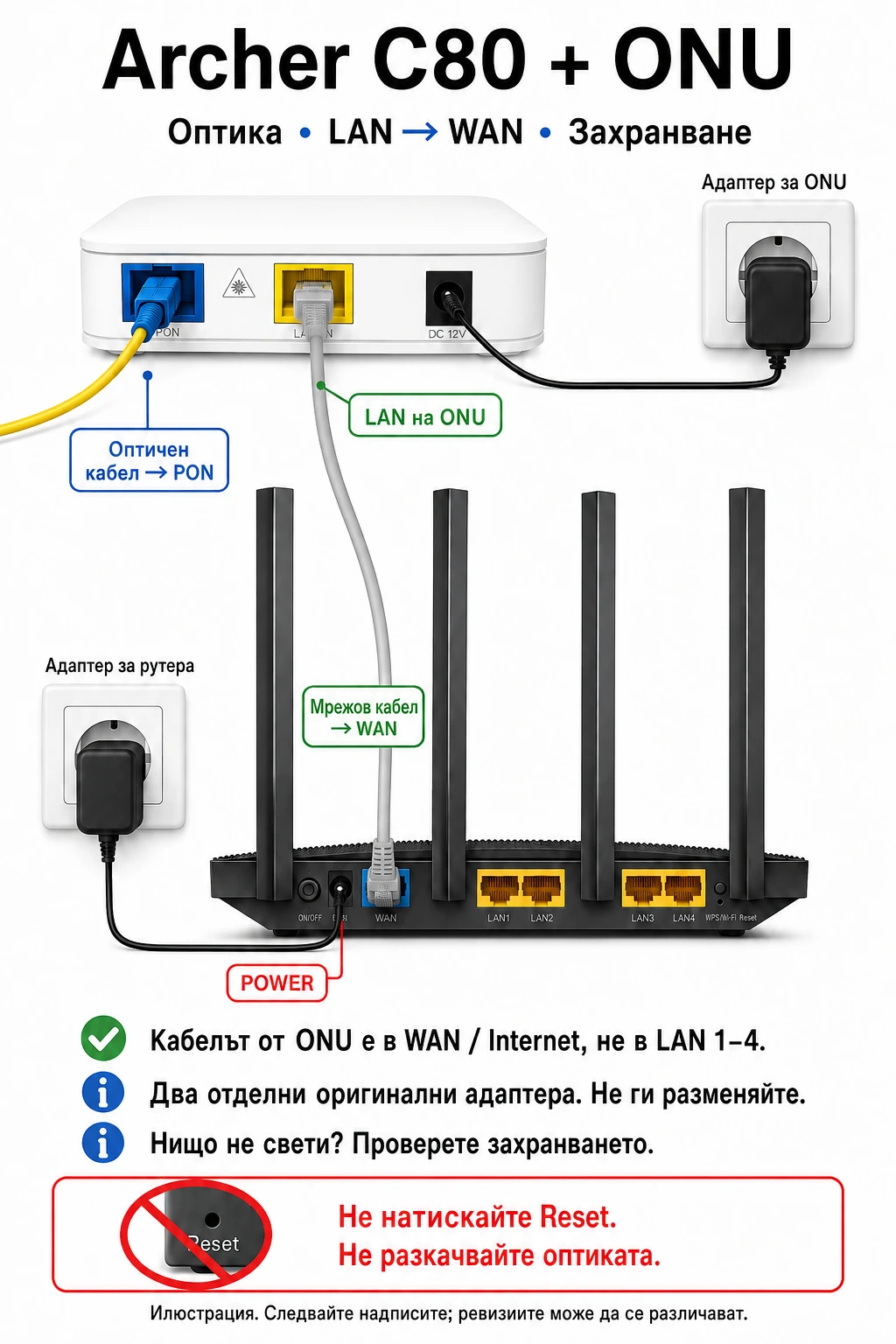 ARCHER C80 + VSOL V2801S
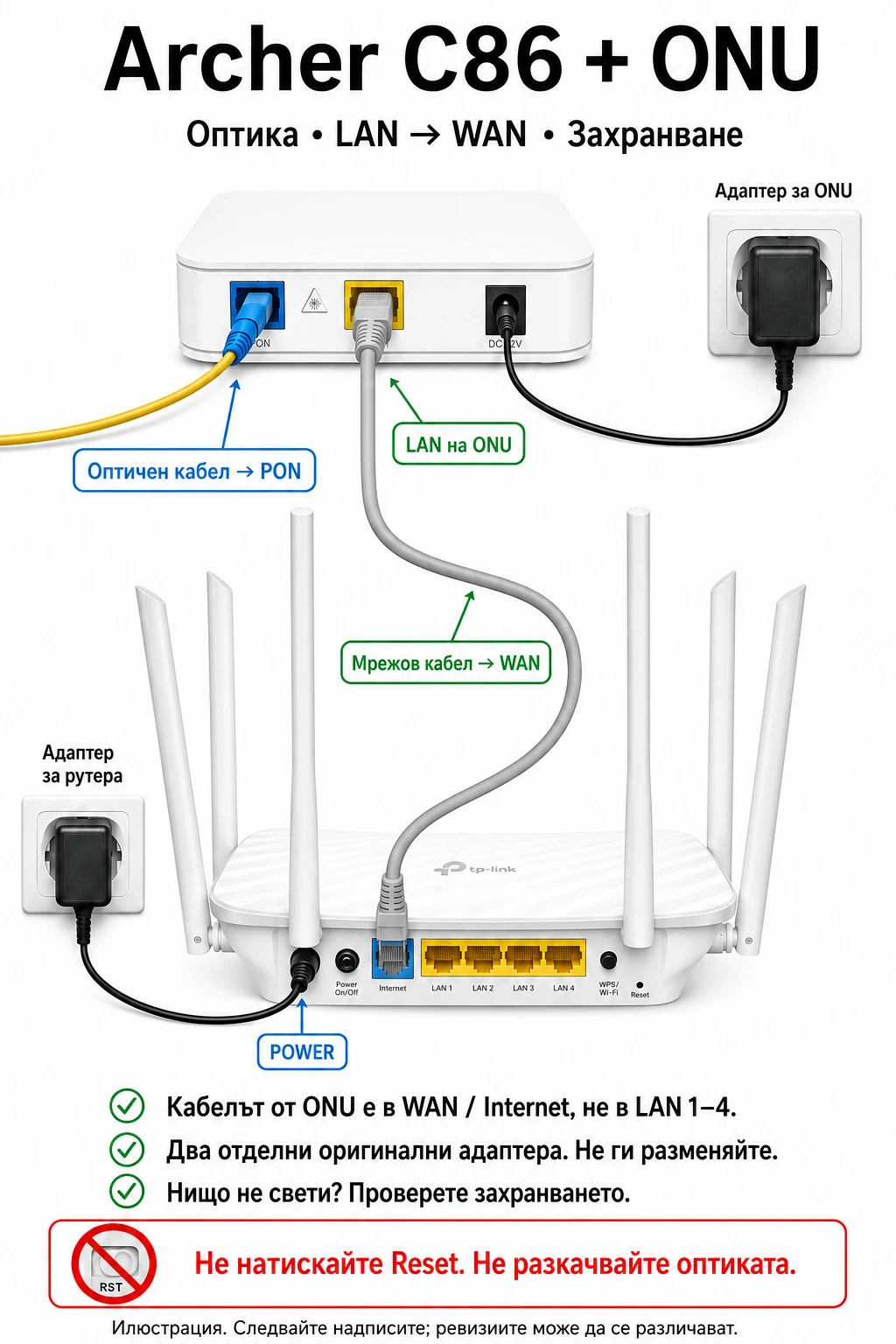 ARCHER C86 + VSOL V2801S
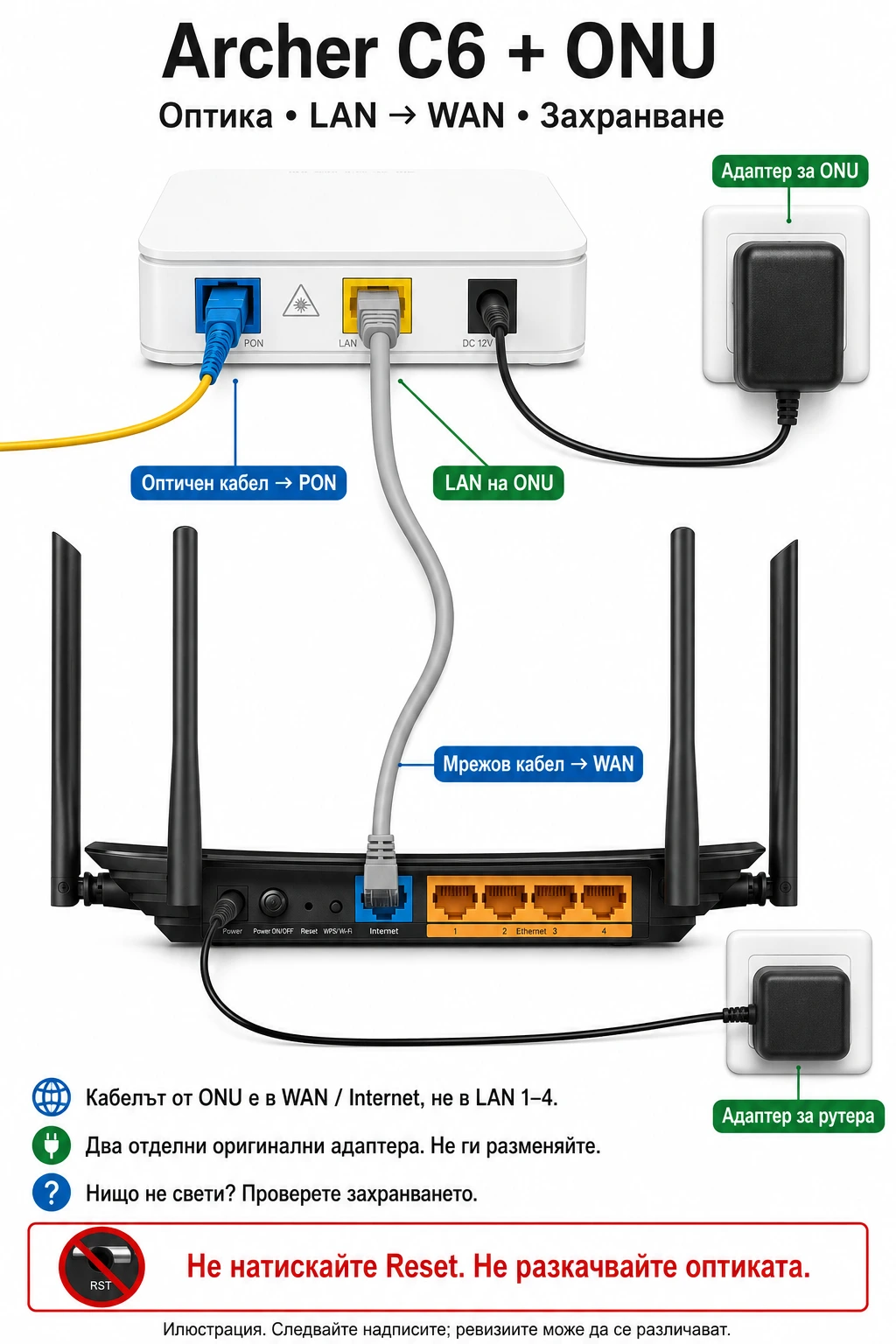 ARCHER C6 + VSOL V2801S
Schematic illustrations with Bulgarian labels; the English instructions above explain the connections. Follow the labels on your own device, not the cable colours or port positions in the drawing.
Antenna: how do the PoE injector and router connect?
- The POE port of the installed Ubiquiti injector supplies data and power to the outdoor antenna.
- The injector's LAN port connects to the router's WAN / Internet port.
- The PoE injector connects to mains power. The router has its own separate power supply.
On NanoStation M5 the antenna cable goes to Main, not Secondary. PowerBeam M5 has one Ethernet input. These diagrams are for those models. If you are unsure, send a photo without moving cables.
Never connect POE to the home router's WAN/LAN. Use only the power supply assigned to the device. Do not press Reset, including on the injector. Do not climb to the outdoor antenna.
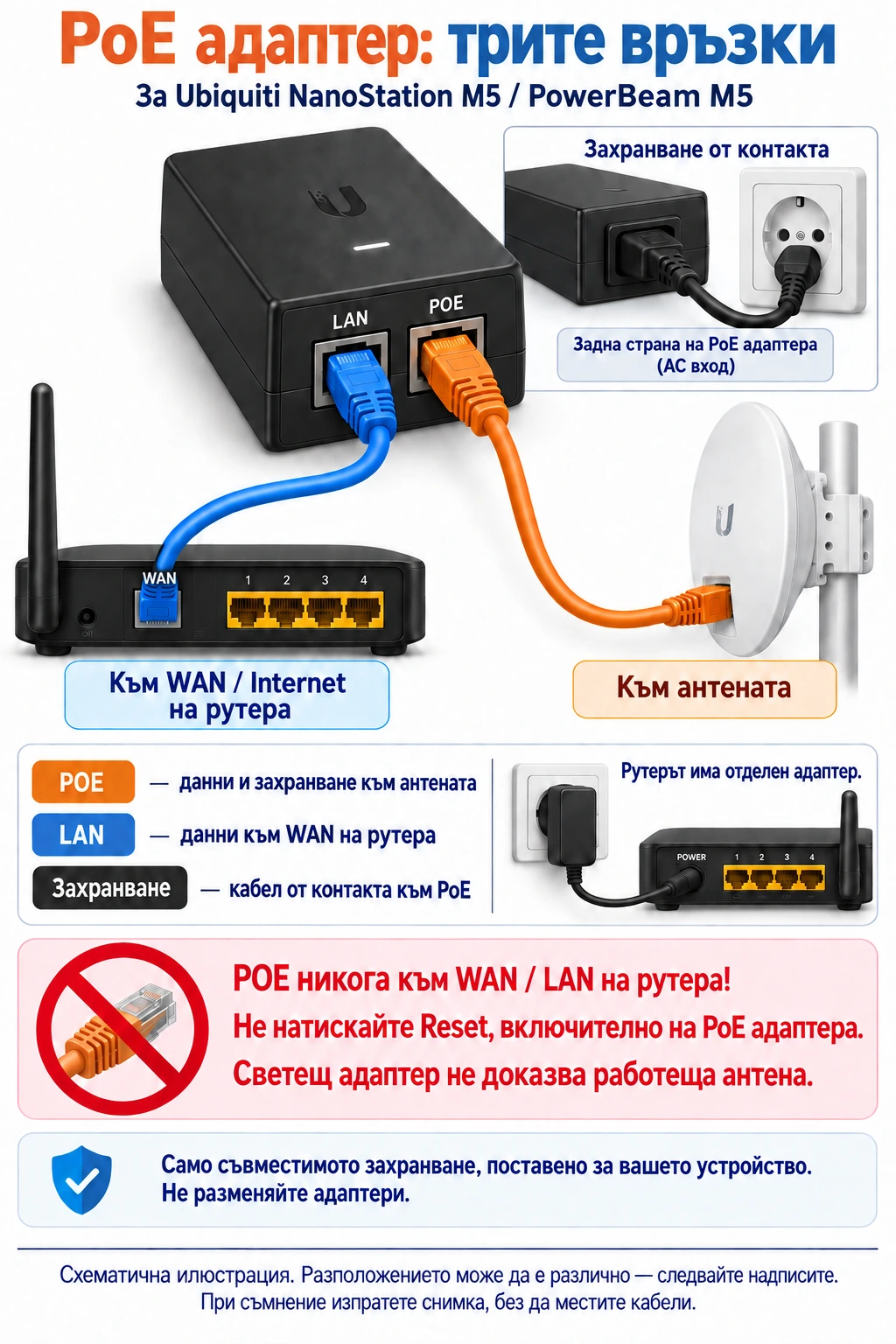 PoE: LAN, POE and powerOpen diagram
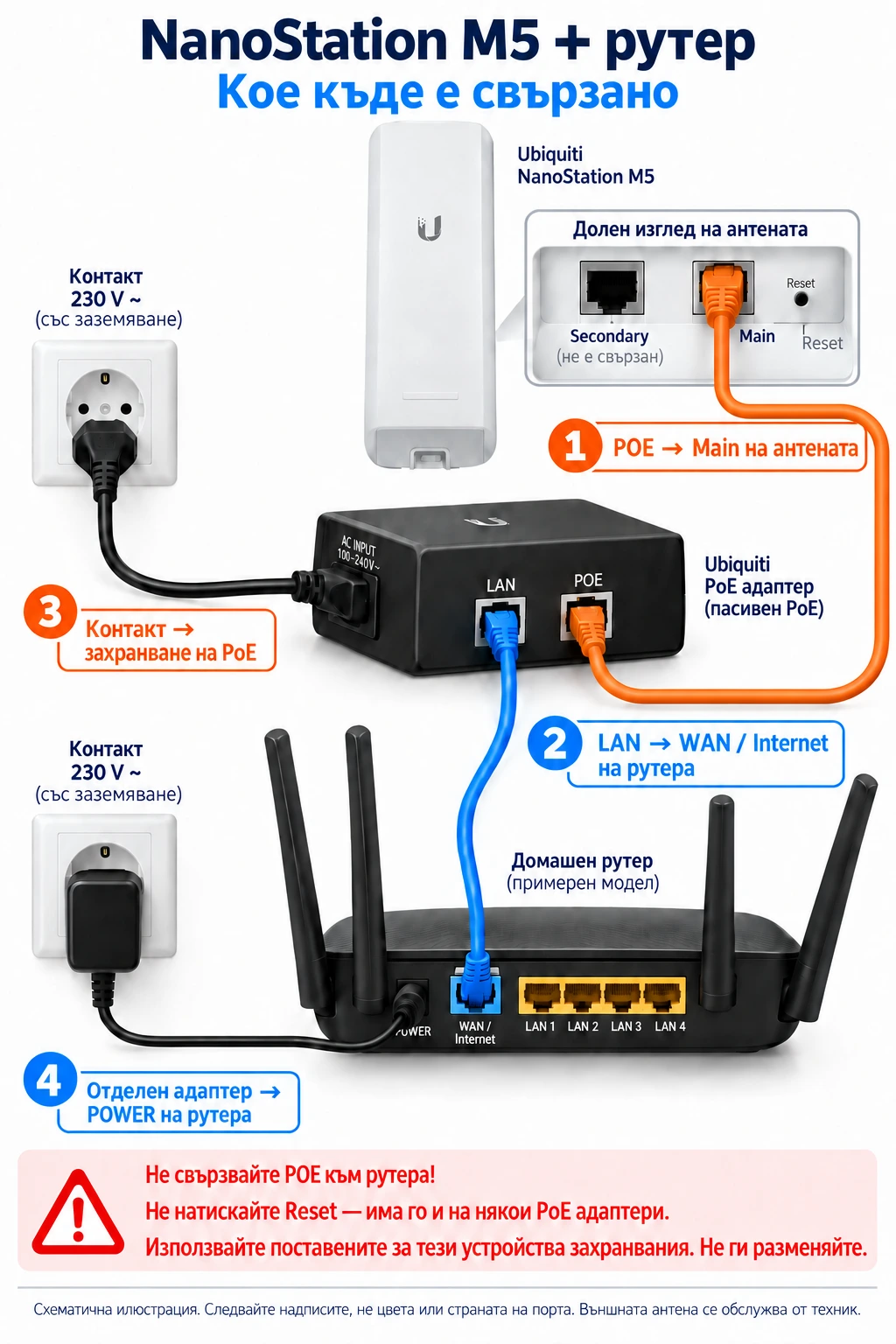 NanoStation M5 + routerOpen diagram
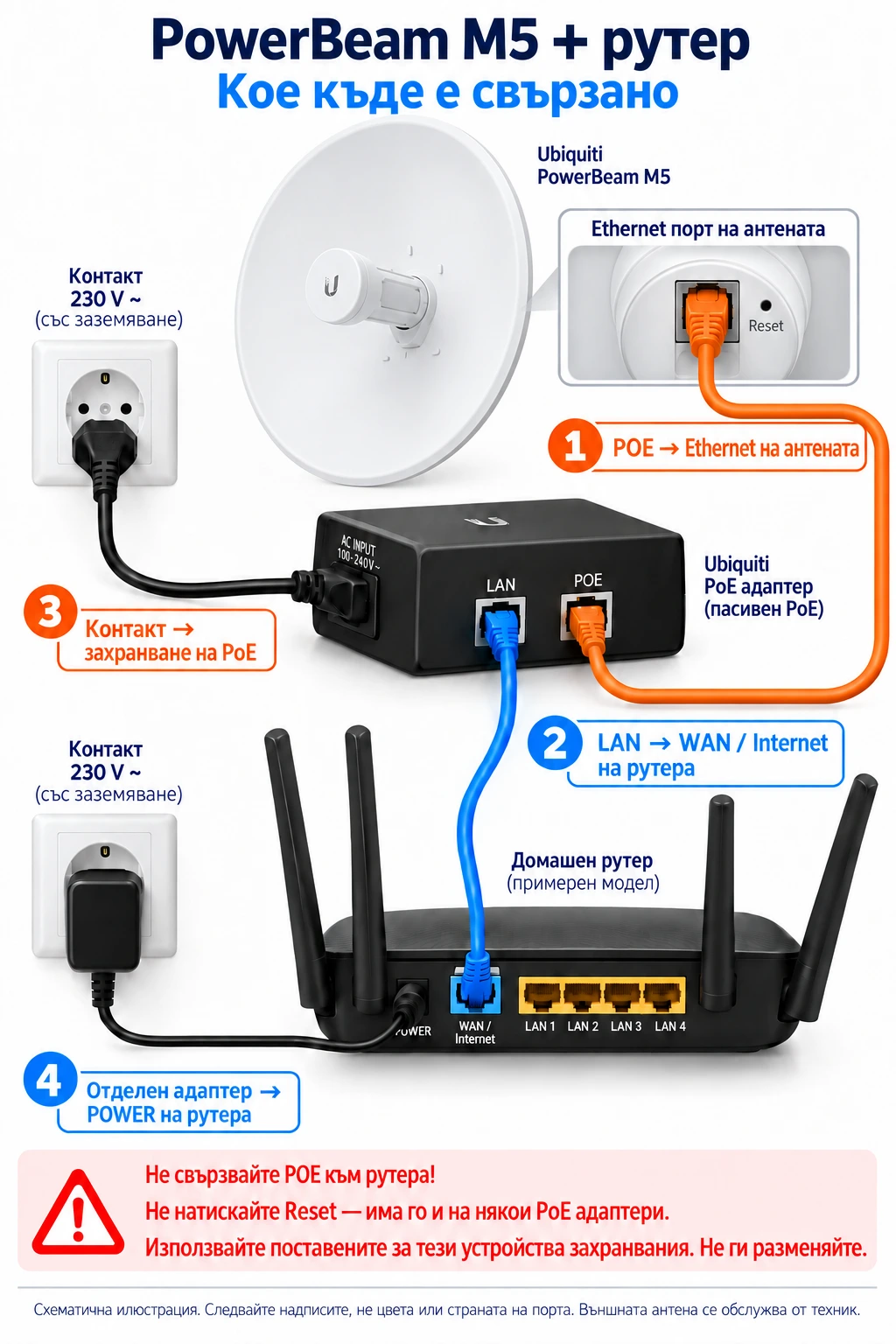 PowerBeam M5 + routerOpen diagram
Schematic illustrations with Bulgarian labels; the English instructions above explain the connections. Follow the labels on your own device, not the cable colours or port positions in the drawing.
What do the VSOL V2801S lights mean?
- SYS: blinking green normally indicates operation; steady green can indicate startup.
- REG: steady green indicates network registration. Blinking green means registration is in progress; blinking yellow means not registered.
- LINK/ACT: on indicates an Ethernet link to the router; blinking indicates traffic. If off, we check router power and the Ethernet cable between the devices.
Registration does not prove that your subscription is paid or Wi-Fi is working. Send a photo if the labels or model differ. Do not apply these colours to every ONU.
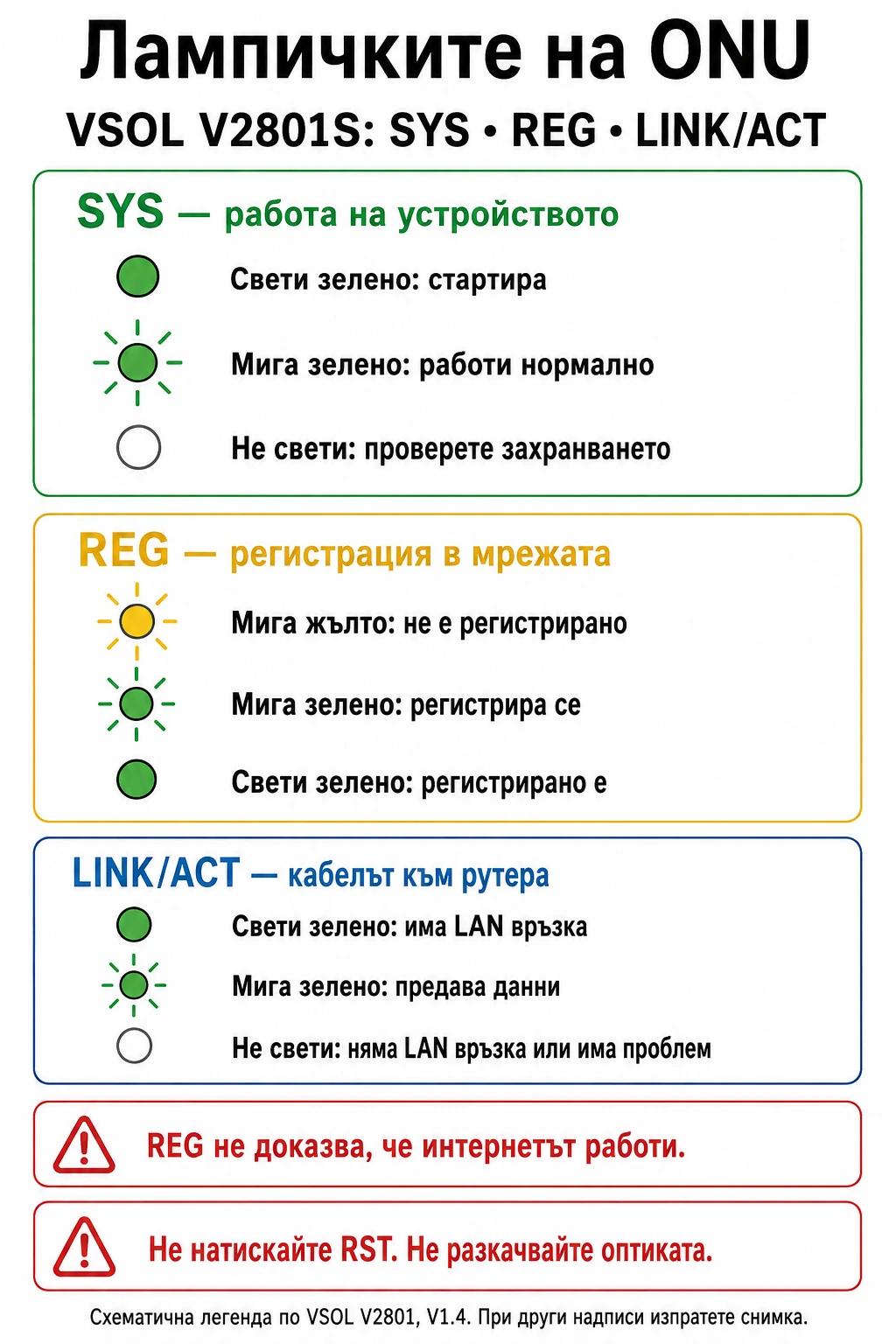 VSOL V2801S lights
Schematic illustrations with Bulgarian labels; the English instructions above explain the connections. Follow the labels on your own device, not the cable colours or port positions in the drawing.
Which router lights should be on?
Use the exact model and hardware version on the label. Power indicates power, Wi-Fi indicates the wireless network, and Internet/WAN and LAN refer to different connections.
Colours differ between TP-Link devices. The diagrams below cover Archer AX53 and TL-WR841N V14 separately. Photograph the front panel and tell us which light blinks instead of pressing buttons.
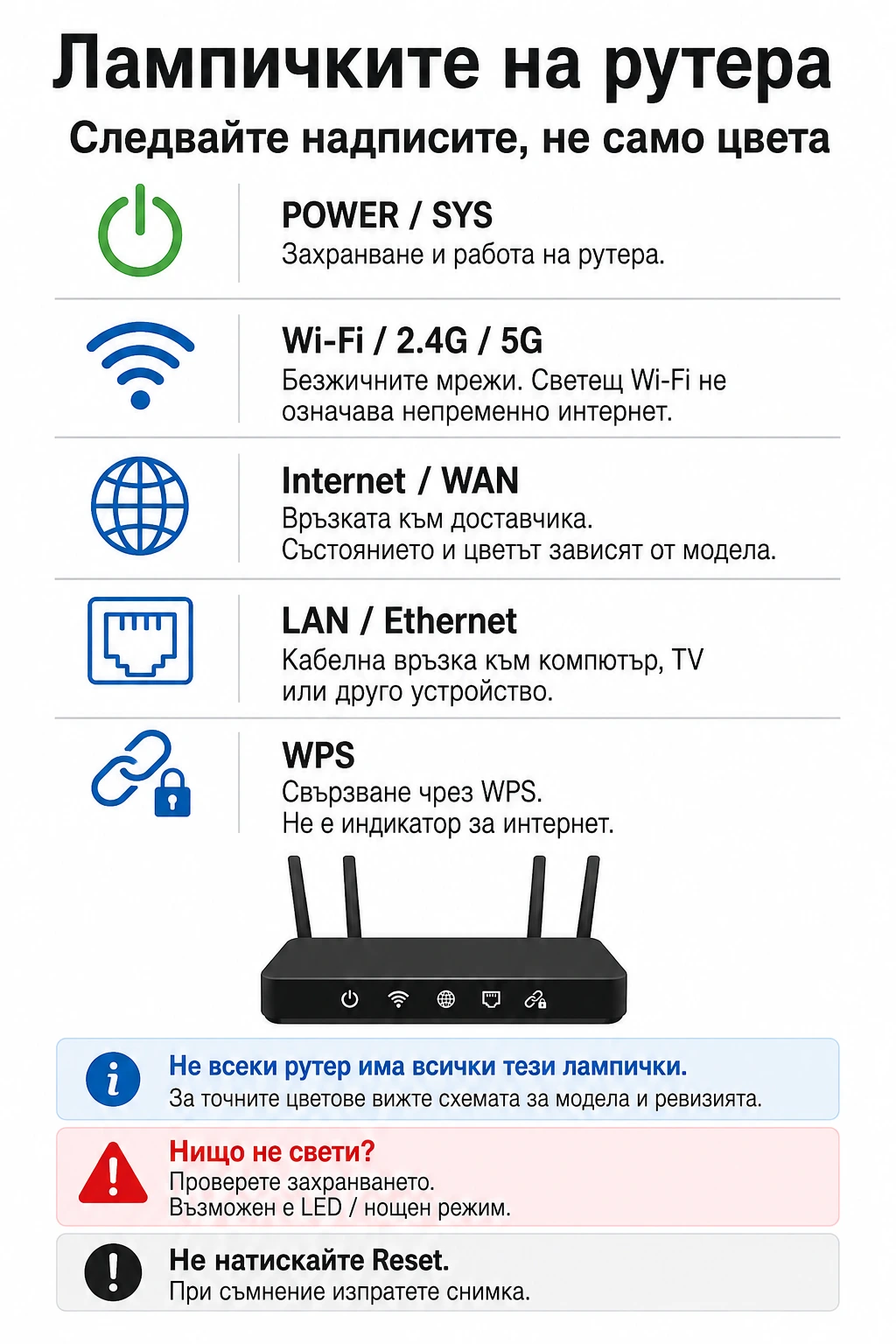 Router light labels
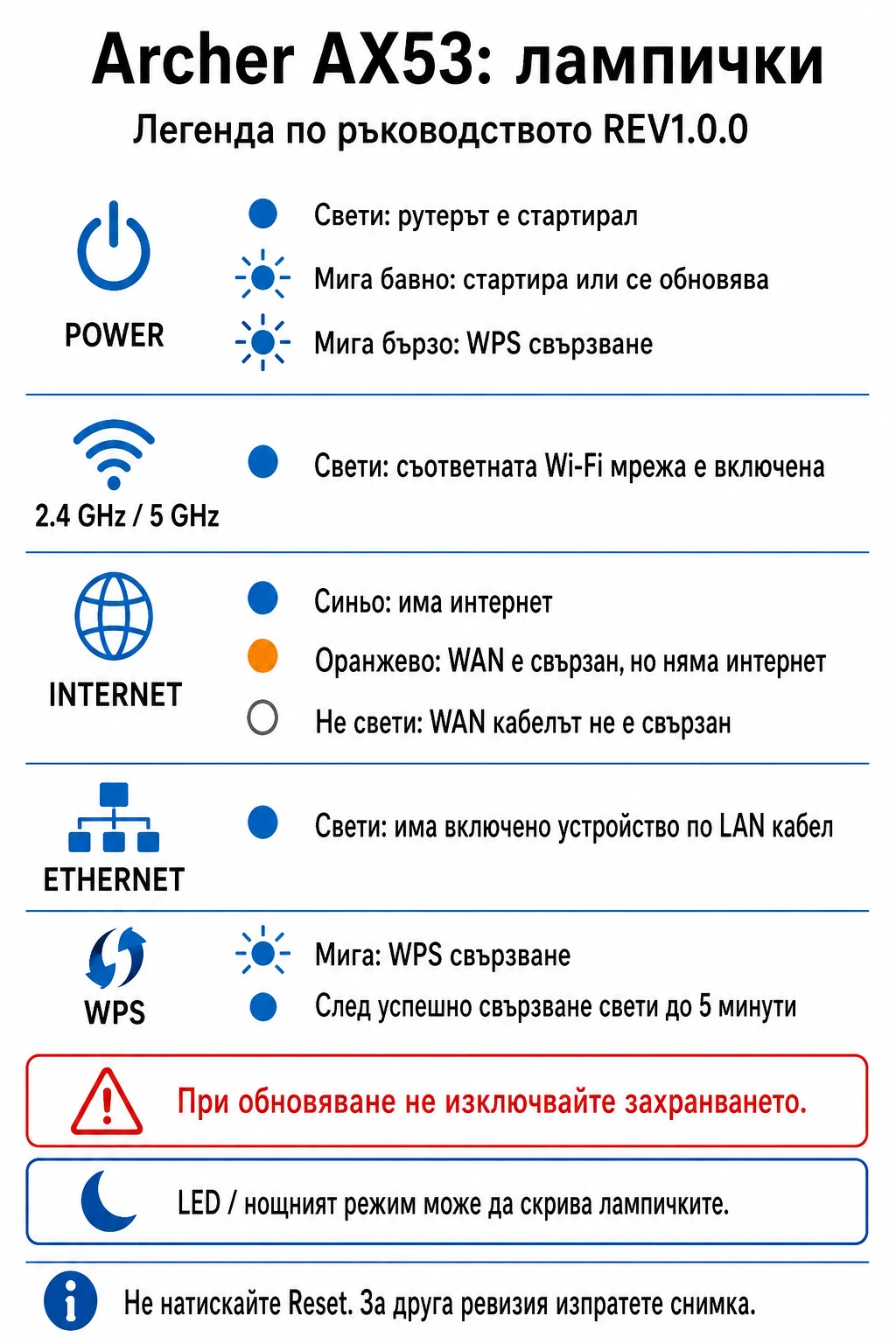 Archer AX53: lights
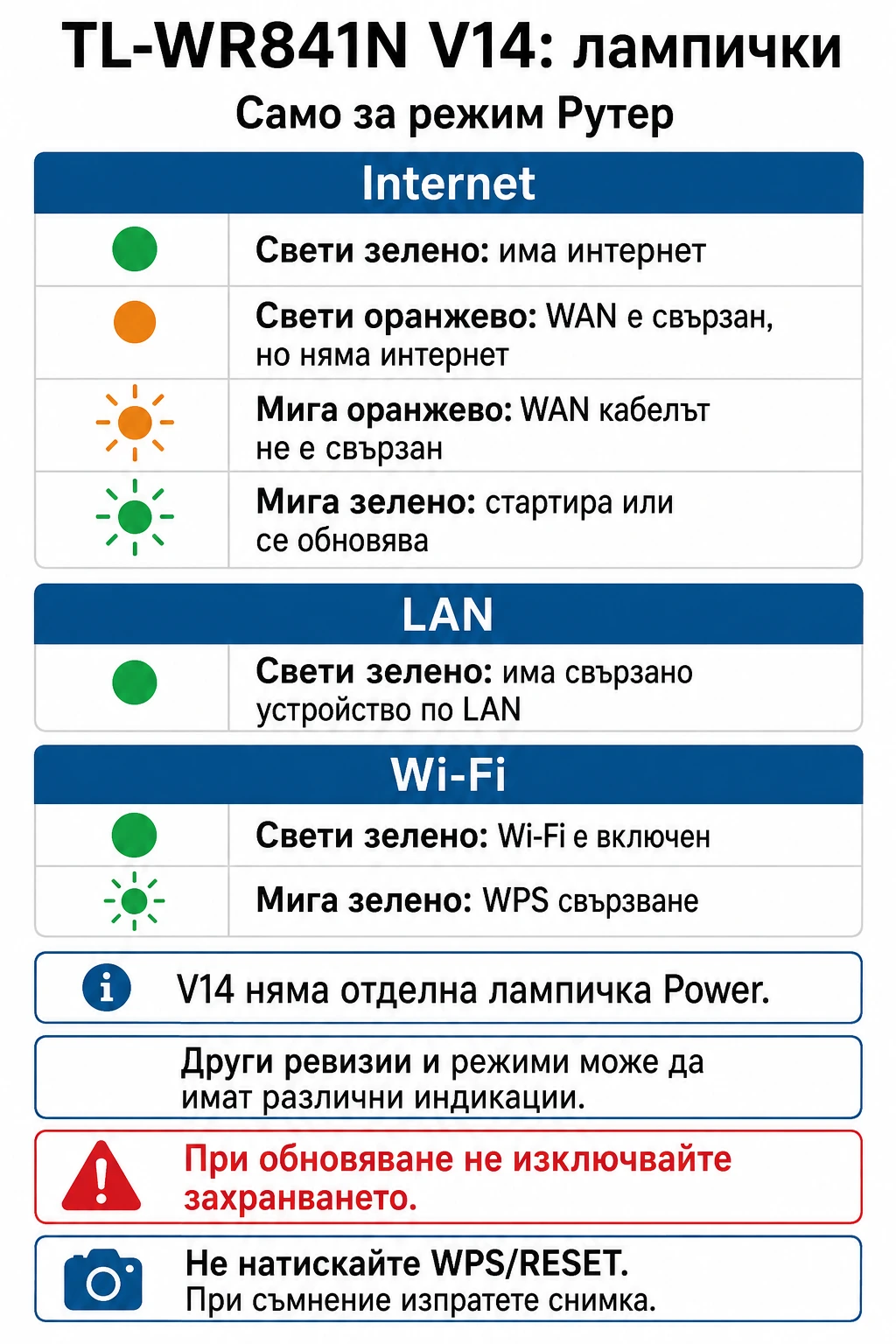 TL-WR841N V14: lights
Schematic illustrations with Bulgarian labels; the English instructions above explain the connections. Follow the labels on your own device, not the cable colours or port positions in the drawing.
Wi-Fi is slow or does not reach every room.
- Try one device close to the router. If possible, compare with a computer connected by Ethernet cable.
- Pause large downloads or backups and note whether the issue occurs when more devices are active.
- If both your router and phone support 5 GHz, compare that connection near the router. Not every model supports it.
Tell us the model, number of devices and whether a wired connection works well. Walls, placement and router capabilities affect Wi-Fi. A faster plan alone does not fix poor Wi-Fi. We can discuss a suitable router or an extra access point after checking.
Internet disconnects briefly and then returns.
- Note the approximate time and duration of the interruption.
- Check whether all devices lose connection together and whether the ONU/router lights change.
- Tell us if it happens while watching TV, gaming, using several devices or after a power cut.
Avoid repeated restarts. Leave safe equipment powered so we can check its state. Support can compare interruptions and links to your equipment. You do not need to find optical signal readings yourself.
Only one website, TV, camera or phone is not working.
- Open another website and try a second device on the same network.
- Tell us which app or device is affected and the exact error it shows.
- For cameras, say whether you are at the property or viewing remotely. Working internet does not prove the camera or recorder is working.
Do not factory-reset the router, camera or TV. Send a screenshot of the error without passwords, access codes or banking details.
I have paid, but my internet is still suspended.
Do not pay again before we check the first payment. Contact us with:
- the account holder's name and service address;
- the method: card, ePay/EasyPay or bank transfer;
- the amount, date and approximate time;
- the payer's name if different, and the invoice/proforma number if applicable.
You may send a receipt photo with sensitive details hidden. We will check which subscription received the payment and whether it covers the fee. We cannot promise restoration before checking.
How do I pay online or using an invoice/order link?
Under “Pay online”, choose your town, plan and “Pay”. Select months or another amount, then card or ePay. Include the account holder's name and address or another known subscriber identifier in the description.
If we sent you a personal invoice or order link, use it. Check the recipient and amount and select an available payment method. Invoice pages also let you download the document. Do not share your personal link publicly.
If a card session has expired, return to the page and start a new attempt. If money has already been taken or the outcome is unclear, contact us rather than paying again. Successful online payment and posting it to a subscription are separate steps.
How do I request internet, a move or a technician visit?
Choose your town under “Internet”, then select “Request” on your preferred plan. Enter the exact address, name and phone number. Explicitly mention if the property is outside the town or village. A location or map pin may help clarify the site.
An operator confirms coverage, connection type, installation price and the visit. A submitted request or preferred time is not a confirmed appointment. For a move, do not disconnect the fiber or outdoor antenna yourself.
Are restart and Reset the same thing?
No. Do not press Reset / RST / WPS-Reset. It may erase settings. Routers, ONUs and PoE injectors can all have such a button.
If support asks you to restart, follow the instructions for the specific device and its power supply. Do not disconnect fiber or change ports. If you have already restarted, tell us when and whether it helped.
During a storm, sparking or visible damage, do not check outdoor cables, wet sockets or equipment. Get help.
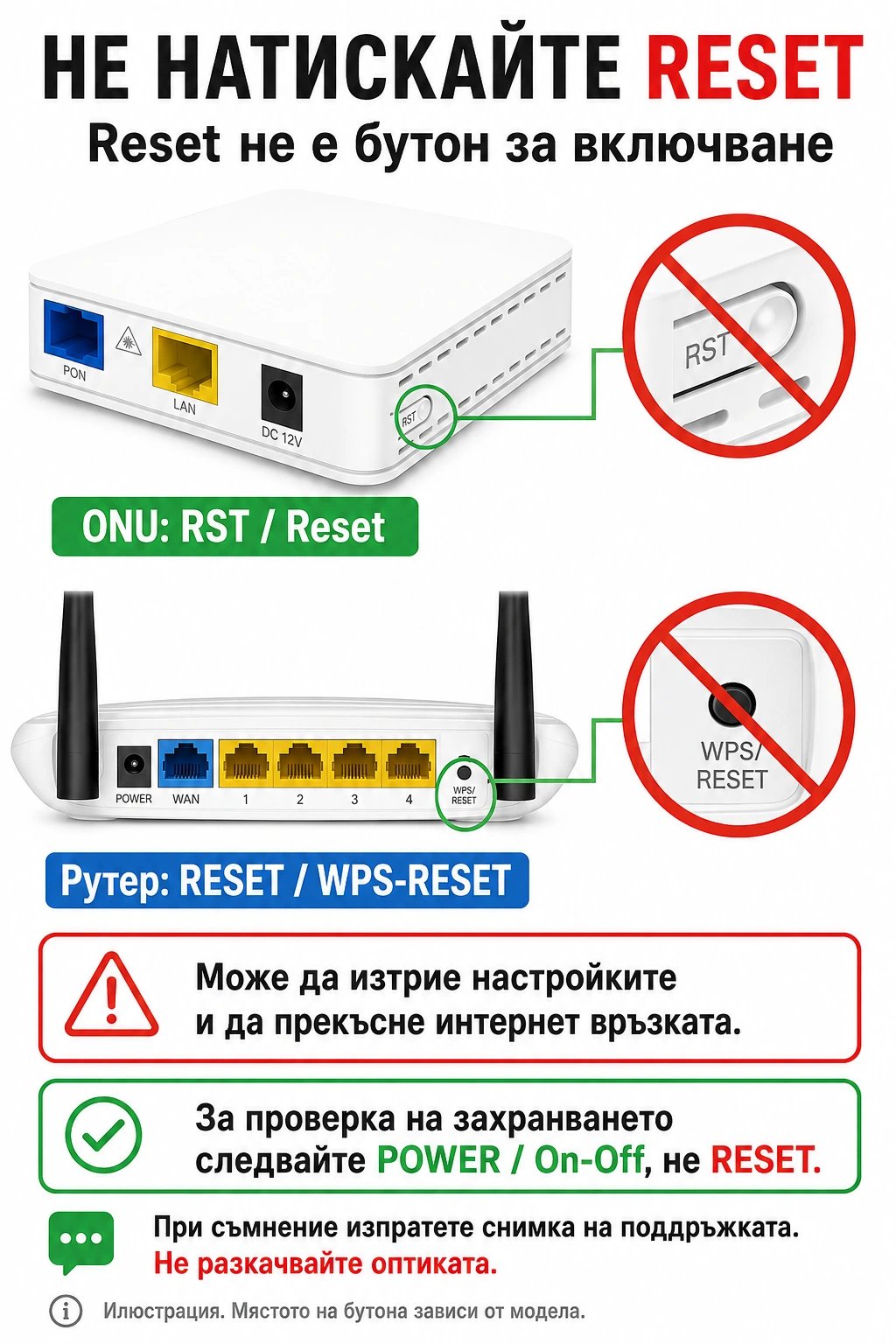 Do not press Reset
Schematic illustrations with Bulgarian labels; the English instructions above explain the connections. Follow the labels on your own device, not the cable colours or port positions in the drawing.
What should I have ready when contacting support?
- Town, street, number and account holder's name. Tell us if the subscription is under a different name.
- A contact phone number and whether you are at the property.
- The problem, when it started, whether all devices are affected and what you have already tried.
- If possible, photos of lights and cables without dismantling or moving equipment.
Chat is available when the support service can be reached. If the button is missing or you are offline, use mobile data or call us. If a visit is needed, we will confirm a phone number and suitable days and times.
No matching answer
Try another word or contact us. You do not need to know the technical term.